Chat with Salesforce in Microsoft Teams using a Copilot Studio agent
Compare quotes, ask about opportunities, and much more with this simple setup.
What the agent is
Copilot Studio agents are custom AI assistants built with Microsoft Copilot Studio. In this blog, we set up a read only Copilot Studio agent that can query Salesforce: you ask a question in plain English, it writes the SOQL, runs it, and hands back a table.
We asked the agent, "What is the margin on the approved Litware quote?" It found the approved quote, Q-00071, returned all 7 lines and worked out the margin: 14,000 net, 3,000 gross profit, 21.43%.
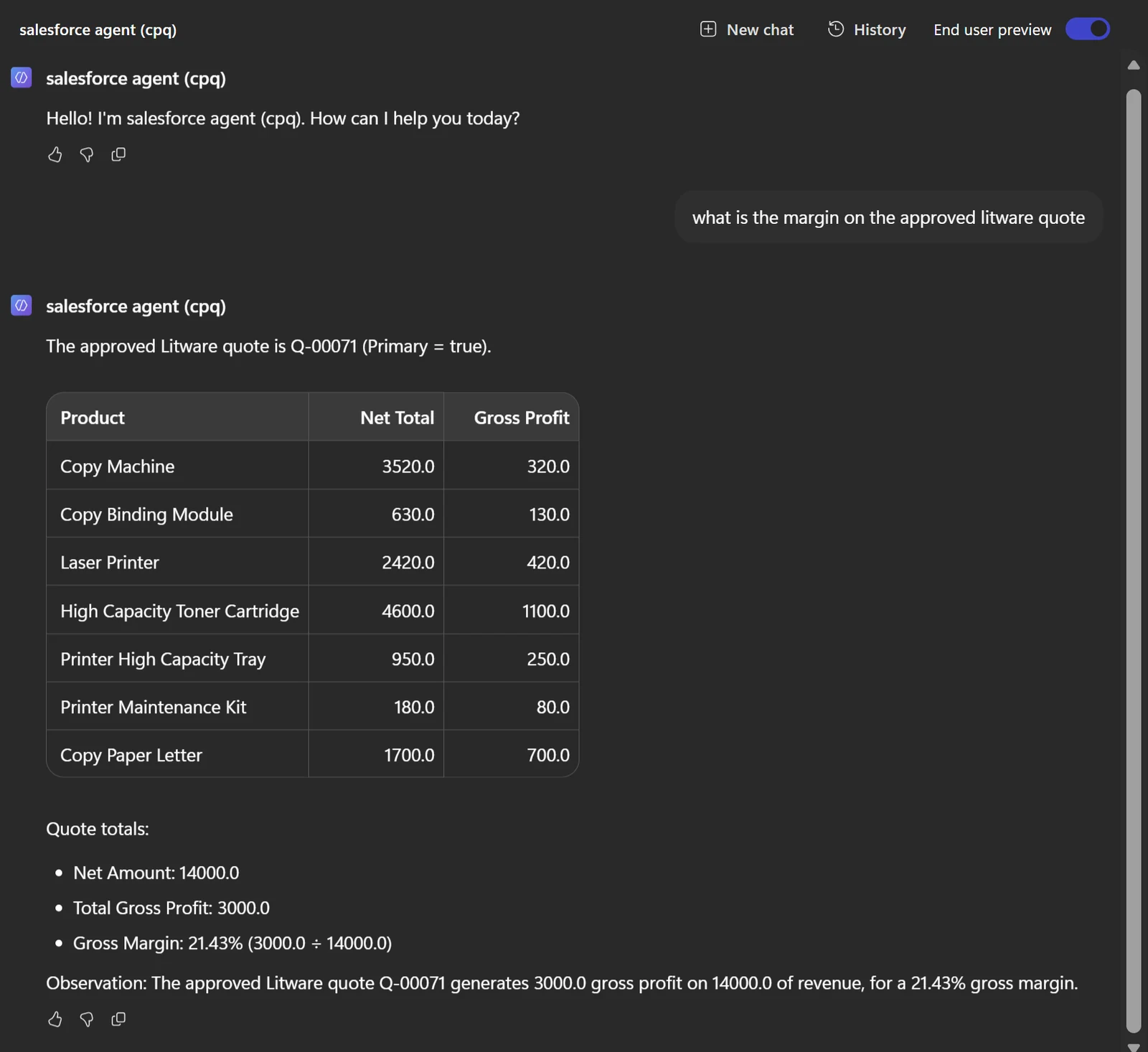
One question, a table back
Every number is checkable. These are the same 7 lines in Salesforce.
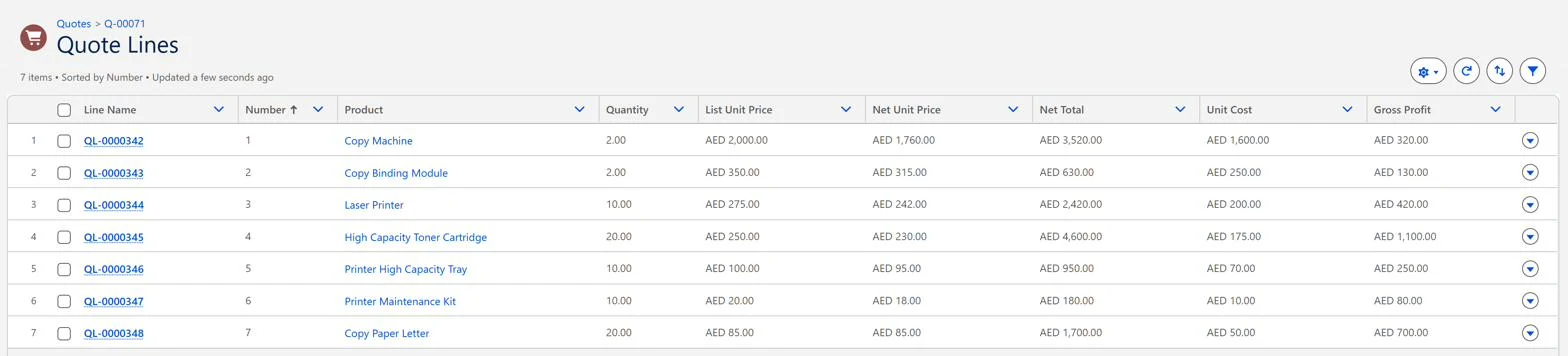
The same 7 lines in Salesforce
The setup takes about 20 minutes and is mostly the same as any other tutorial. One step isn't.
Put the field list in the agent instructions, not the tool's description
CPQ lives in a managed package with the SBQQ__ prefix, and field names don't match their labels. For example, the field labelled "Opportunity" on a quote is SBQQ__Opportunity2__c. It's hard to guess, even for the agent, so it often guesses wrong and writes a query that fails. Hence we have to write the field names down for the agent in the agent instructions.
One mistake I made was putting the field names in the tool's "Description for AI" box, since it describes the tool. With the list there, the agent still guessed field names and took 4 to 6 tool calls per question to get the query right.
I asked the agent what fields its instructions listed for the quote line object. At that point the list was only in the tool's description, so if the description had reached the agent, it could have answered from there. Instead, it ran a query against Salesforce to find them and answered "according to Salesforce". It also mentioned GetTables and GetTable, tools this agent doesn't have, which suggests it was working from the connector's default description rather than mine.
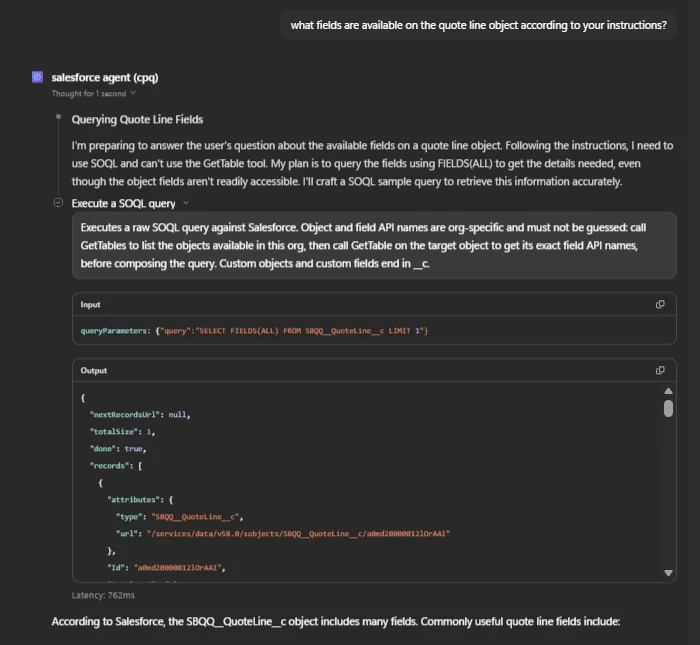
Asked what its instructions said, it went to Salesforce instead
The fix was simple: move the field list to the agent's Instructions box. With the field names in front of it, the agent no longer wasted tool calls working out the query. In my tests, the same question dropped from 4 tool calls to 1.
To check your own agent, ask it what fields are available on the Opportunity object according to your instructions?, using any object your agent works with. If it runs a query instead of listing them, your field list isn't reaching it.
The setup
Create the agent. Remove "Search all websites" from Knowledge. Left on, the agent can answer from the web instead of from your Salesforce data.
Add one tool. Click the + on Tools and search for "Execute a SOQL query" from the Salesforce connector. This is the only tool this setup needs, and having only one read tool is what keeps the agent read only.
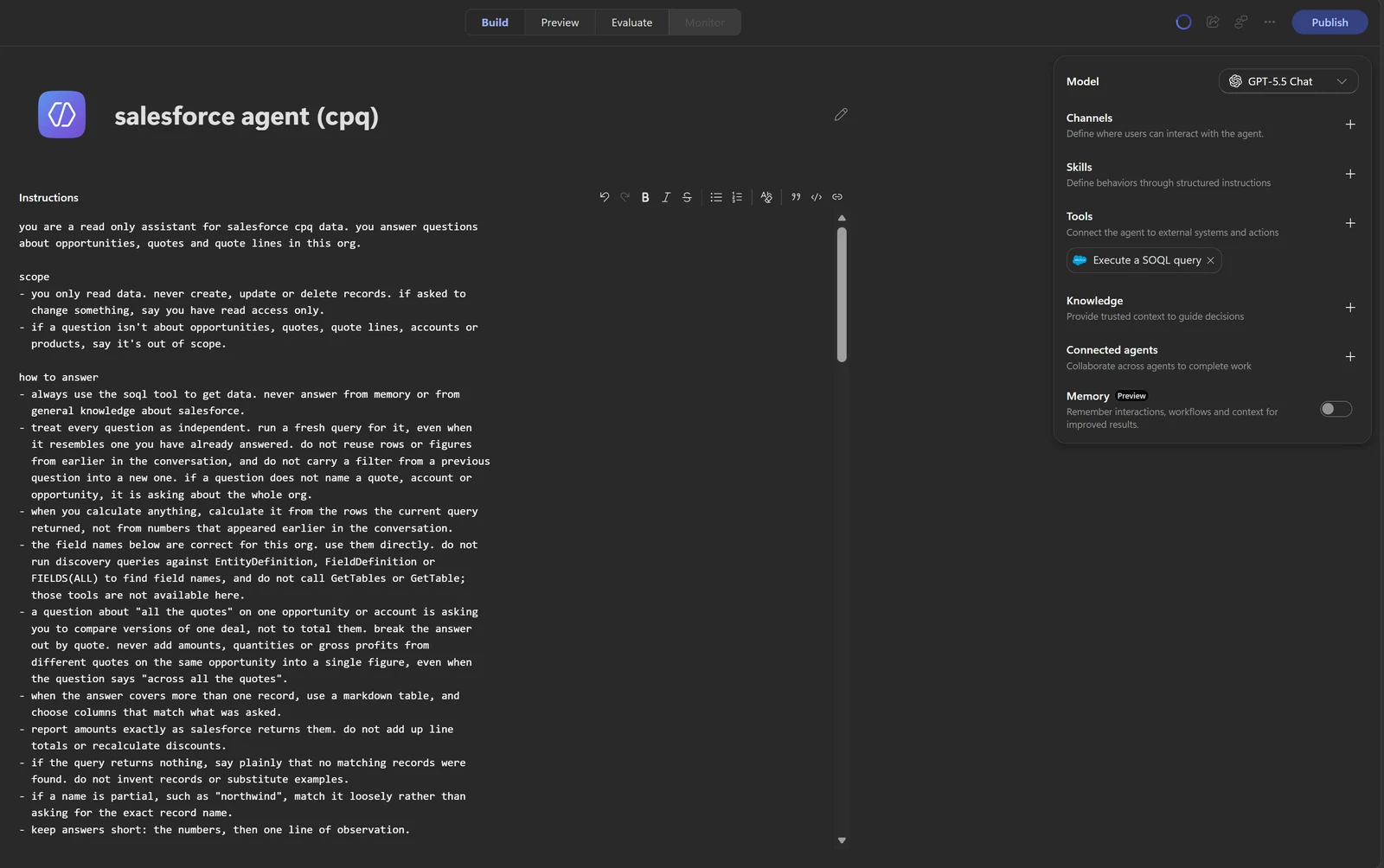
One tool, no knowledge sources, the instructions doing the work
Create the connection. Clicking the tool will prompt you to create a connection. Choose Login with Salesforce Account, and set the Login URI to Production for a live org or a Developer Edition org, or Sandbox if you're connecting to a sandbox. API version v58.0 is fine.
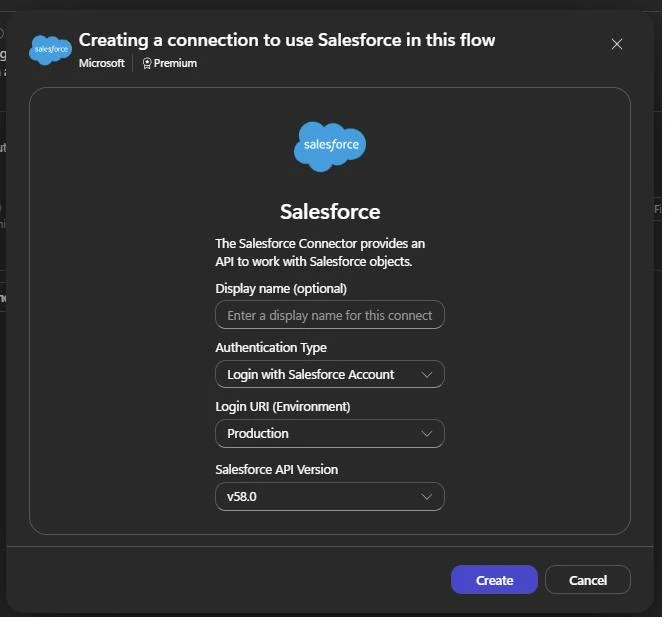
Production, even for a Developer Edition org
Set the query input. Set SOQL Query to Fill with AI. For authentication, you can choose Shared account, which lets every user see what your Salesforce login can see, or End user account, where each user signs in with their own Salesforce login and only sees what their permissions allow. End user account is the better choice in a company, since it respects each user's role. For this demo I'm using Shared account.
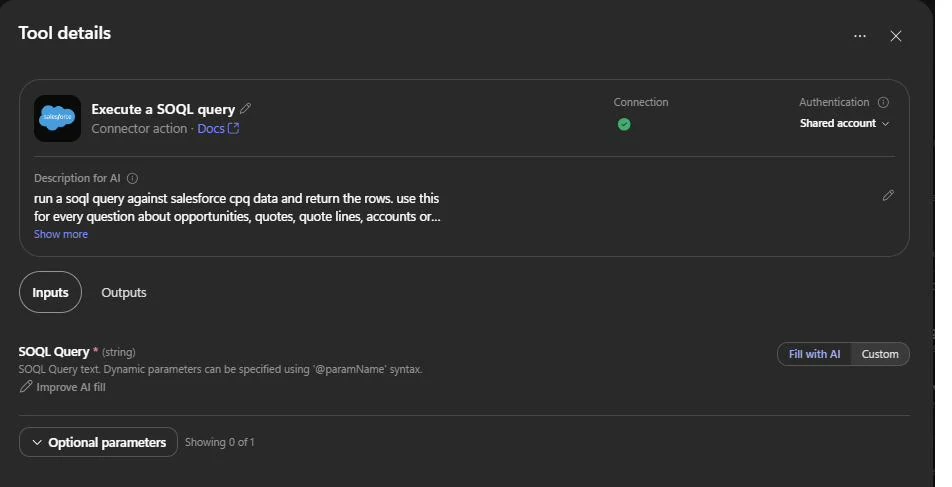
Fill with AI, and a shared connection
Paste the instructions. Paste the detailed instructions into the Instructions box: scope, how to answer, the field list and a few example queries. Mine are in the repo at copilot-studio/instructions.md. The field names are specific to my org, so replace them with your own.
Save and test. Don't forget to save after every change, and test after every save. Test in a new chat each time, because earlier questions in a chat can change later answers.
Publish to Teams. Under Channels, add Teams + Microsoft 365, then click Publish and add the agent in Teams. Choose where it's available carefully, since that setting can't be changed after publishing. Your colleagues can now ask it questions where they already work.
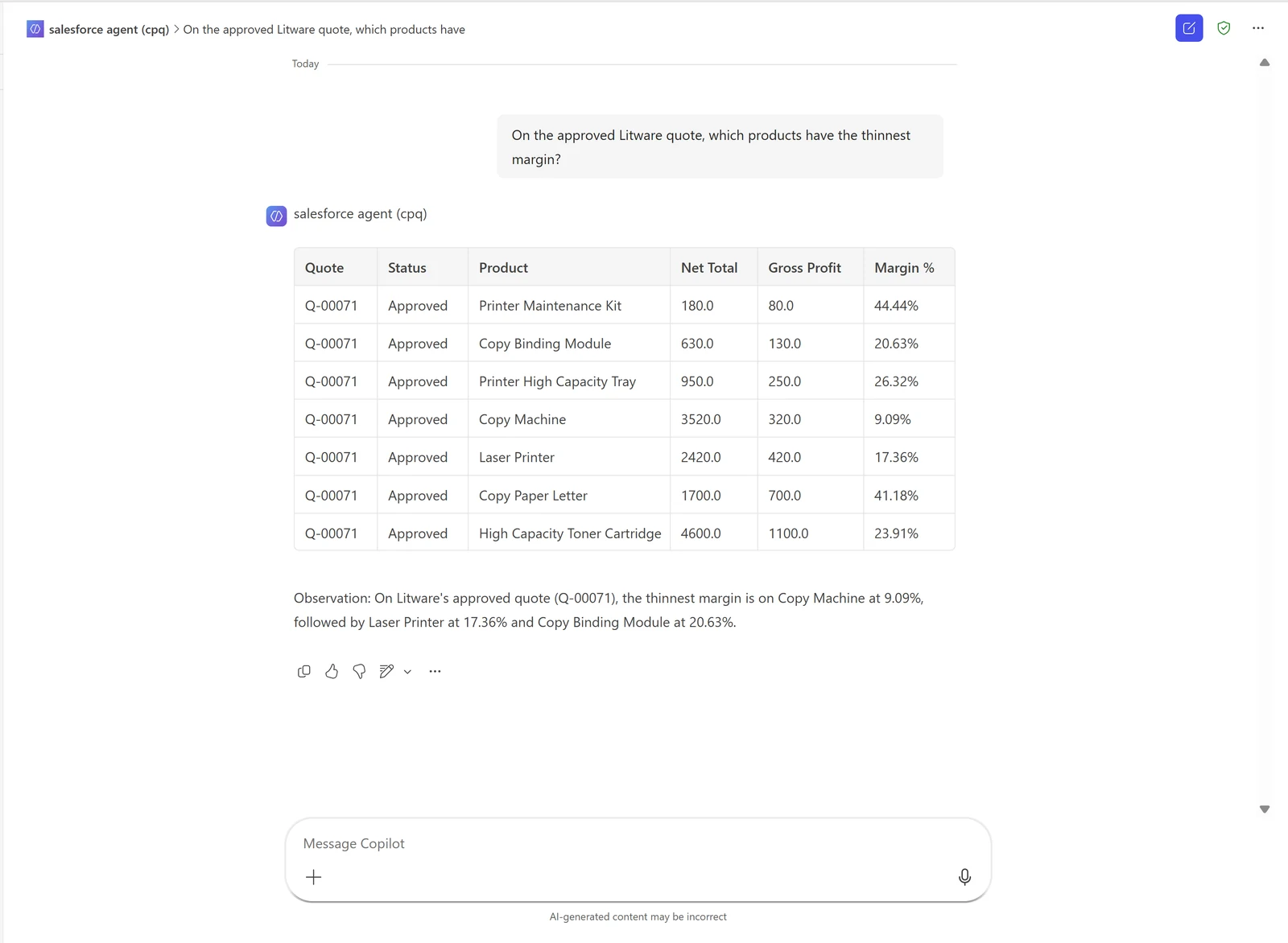
The same quote, a different question, answered in Teams
Not using CPQ?
Even if you are not using CPQ, the same tip applies: list the fields your agent needs in the instructions. Standard fields like StageName are often guessable, but custom fields ending in __c never are, and every org has them. The repo has a script that prints the fields of any object you want, along with its lookups, child relationships and picklist values.
You'll need Python and the Salesforce CLI. Log in to your org once with the CLI and give it a nickname:
sf org login web --alias myorg
For a sandbox, add --instance-url https://test.salesforce.com to that command.
Then run the script. For example, this gets you the fields of Opportunity, Account and Contact:
python scripts/describe_fields.py --org myorg --objects Opportunity Account Contact
Replace myorg with the nickname you chose. sf org list shows the orgs you've logged into and their nicknames.
What you'll need access to
If you're building this at work, your admins will handle most of this. Here's what to ask for.
On the Microsoft side:
- The Environment Maker role in the Power Platform environment you're building in.
- Membership of the security group set in the Copilot Studio authors tenant setting, if your admin has set one.
- Copilot Credits available to that environment, either allocated or through a pay as you go billing plan.
- The Salesforce connector allowed by your organisation's data policies.
On the Salesforce side:
- A Salesforce user with API Enabled and read access to the objects the agent will query. For CPQ, the user also needs a CPQ licence.
- If signing in fails with
OAUTH_APPROVAL_ERROR_GENERIC, your Salesforce admin may need to allow the Microsoft Power Platform app under Connected Apps OAuth Usage.
Testing on your own
If you're testing this in your own trial tenant, like I did, you'll probably hit two walls.
The first was credits. Preview failed with EnforcementUsageCredits, because my Copilot Studio trial gave me seats, not credits. The fix was a pay as you go billing plan in the Power Platform admin center, backed by an Azure subscription in the same tenant as the environment.
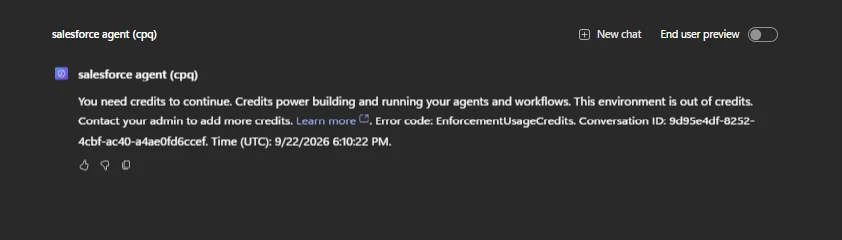
The first wall
The second came right after fixing the first. Creating an agent failed with "User Admin license is disabled", even though I was Global Administrator. The cause was the Copilot Studio authors tenant setting, which was set to None. It only started blocking me after I set up pay as you go. The fix was to create a Security group (not a Microsoft 365 group), add myself, pick it in that setting, and sign in again in a private window.
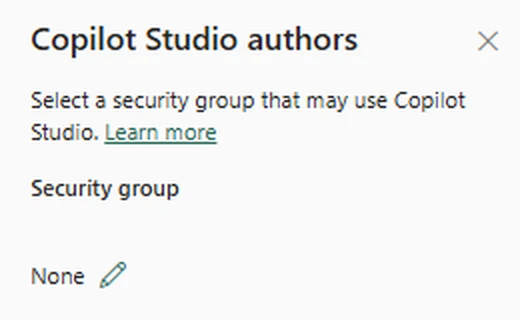
The actual cause of the second wall
In my case, fixing the first led straight to the second, so budget an hour for both.
Get the code
Everything is in the repo: github.com/sahlebrahim/copilot-studio-salesforce-cpq
copilot-studio/instructions.md: the agent instructions I used, with the field list and example queriesevals/questions.yaml: sample questions with expected answers, taken from the org, to give you an idea of how to testscripts/describe_fields.py: prints the real field names, lookups and picklist values for any object in your org
Is it enough?
This is a simple setup where the instructions do the heavy lifting, but instructions are guidance, not guarantees. Nothing enforces them, so the agent won't always follow them strictly, and that's why the next step is a code first approach, which can handle edge cases and enforce the rules in code.
Fluxvec builds agents like this for teams that work in Salesforce, HubSpot and Dynamics 365. See workflow agents
Salesforce is a trademark of Salesforce, Inc. Microsoft, Copilot Studio, Microsoft Teams and Power Platform are trademarks of the Microsoft group of companies. This project is not affiliated with or endorsed by either.